
Disclaimer: As a learning opportunity for skills and writing content with AI, this entire article has been written by AI. It’s pretty clear, but I decided to keep it like this anyway, for this one project. All information has been verified and is accurate. All ideas and thoughts I wanted to capture were captured. It’s just tone that makes this evident AI content.
Vision
Every trip, birthday, anniversary, or holiday gathering ends the same way. Everyone took photos and videos, but getting them all in one place is a mess. With a small group, it is easy enough. But once you have ten or more people, things get tricky fast. AirDrop needs too many individual transfers. Google Drive requires an app and an account. There are dedicated photo sharing apps out there, but they charge upwards of €25 per event.
I previously tried self-hosting Immich, an open source gallery application. It worked well, but running it on a virtual private server meant ongoing monthly costs just to keep it alive.
Around the same time, I was experimenting with Imagine, an artificial intelligence web builder designed for anyone. While tools like these abstract away a lot of knowledge about how to work with AI, from prompting to skills to memory and more, I wanted to learn it at a “lower level”, without the abstraction. I specifically chose Claude Code, since it supports skills that let me customize and extend how the artificial intelligence works.
With that in mind, I set out to build an application that is effortless for both the event organizer and the participants. The organizer is the only person who needs to create an account. From there, it takes just a few clicks to set up an empty gallery and get a shareable URL or a printable QR code.
Participants simply open the public URL. No app to install, no sign-up required. It works on any device: phone, tablet, or desktop.
Privacy and security were a priority. All data is stored through Appwrite Databases, and any validation that cannot be done securely on the client side, like checking whether the public link of a gallery has expired, is handled by server-side rendered endpoints in the Next.js application.
Exporting is kept simple. A single click downloads all files into one ZIP archive, making it easy to back up. For viewing purposes, the public URL is the better option, as it displays all images with proper optimizations.
Speaking of optimizations, the public gallery uses BlurHash, the same technique used by Wolt, to show a blurry placeholder before the actual image loads. On top of that, Appwrite image transformations serve smaller previews in the grid at 720p resolution, 80% quality, converted to webp format. The original file is only loaded when viewing an image in fullscreen.
Technologies
- Appwrite for Authentication, TablesDB for galleries, Storage for pictures, and Sites for server-side web app rendered deployment
- Next.js, the full-stack framework powering both the frontend and the server-side endpoints
- shadcn/ui, component library built on Radix UI primitives, providing accessible and themeable components
- Tailwind CSS, utility-first styling
- TypeScript, type safety across the entire codebase
- Zod, schema validation for forms and data
- sharp, server-side image processing for generating blurhash values
- BlurHash, compact image placeholder algorithm for smooth loading previews
- Node QRCode, generating QR codes for easy gallery sharing
Screens
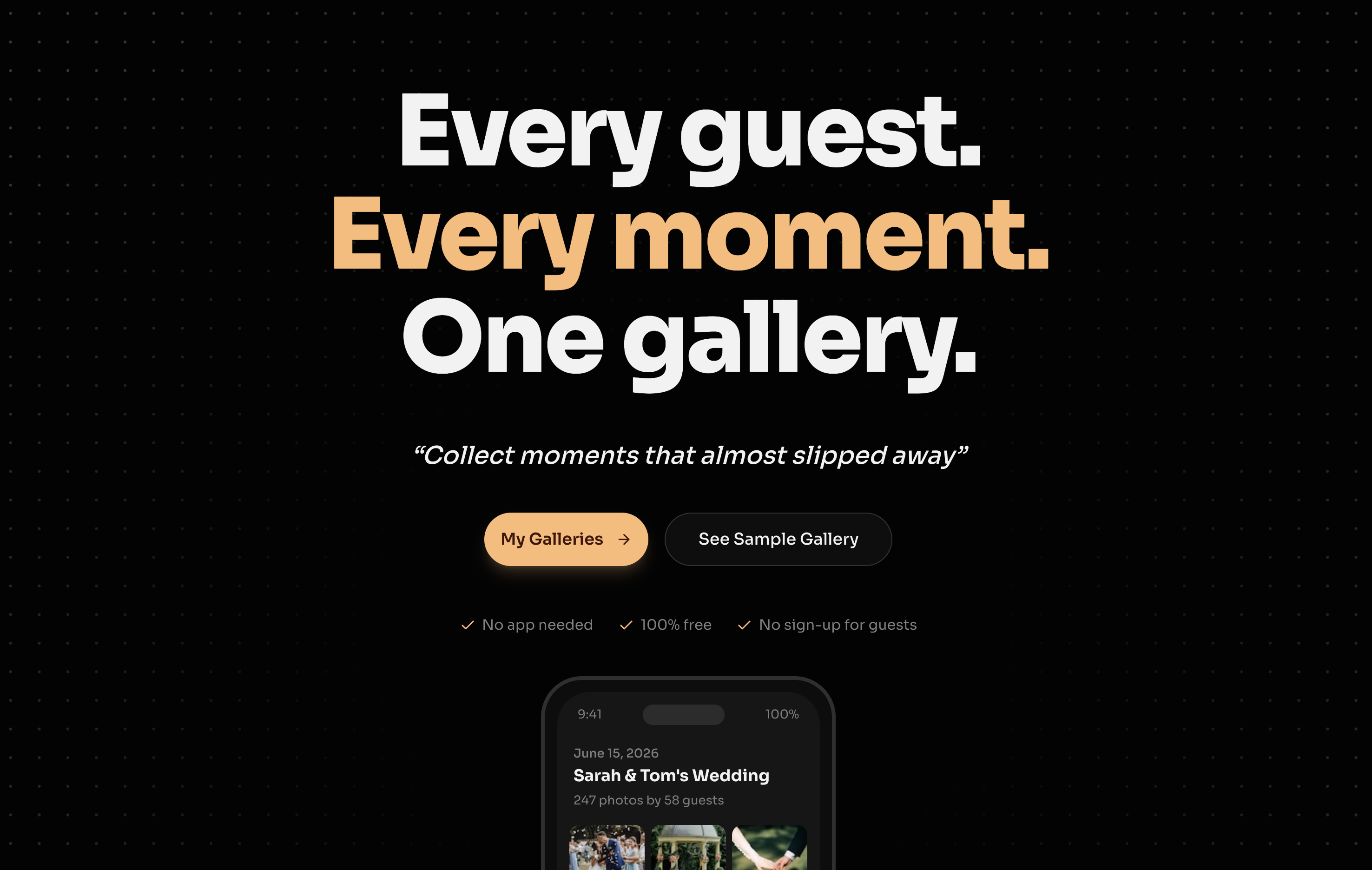
I started by prompting the artificial intelligence to generate five uniquely different homepage designs, each on its own git branch. I used designer and marketer skills from skills.sh to guide the process, then combined elements from different versions and picked what I liked the most.
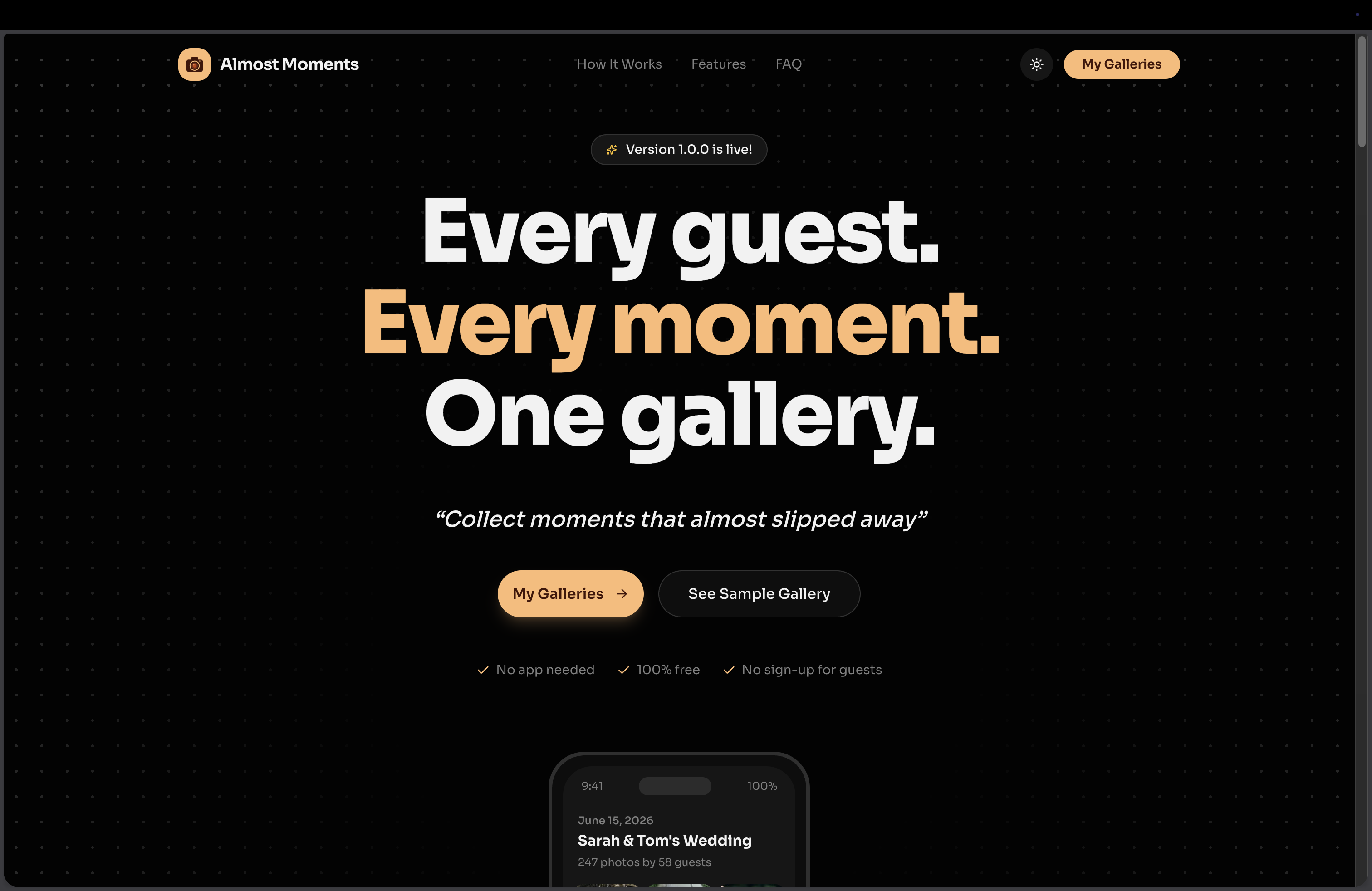
One thing I am especially proud of is the interactive showcase component. It looks like the app-switching interface on Apple devices. I initially asked the artificial intelligence to build a common horizontal sliding gallery, then constrained it to a mobile device frame, and this design emerged from that.
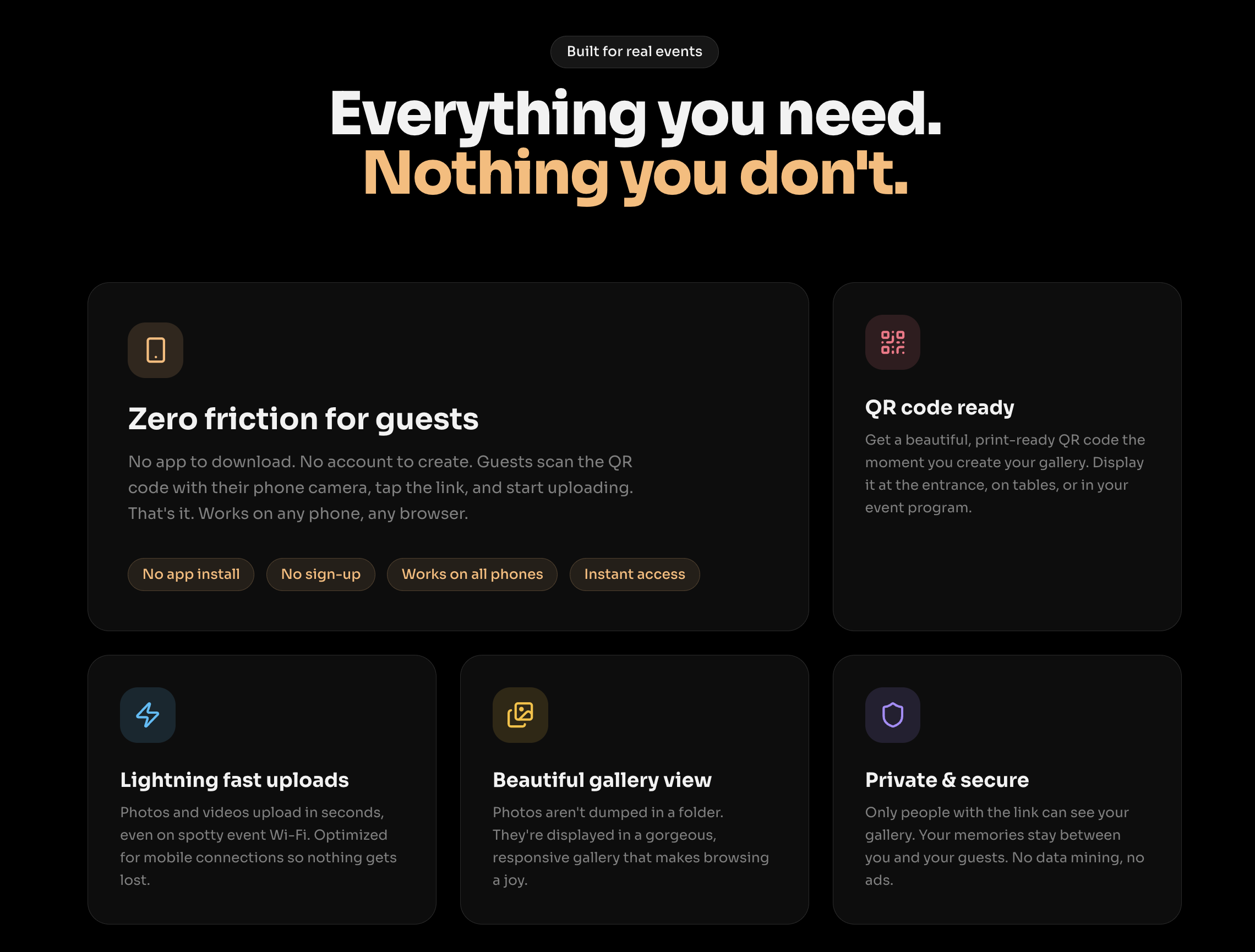
The bento grid section keeps things simple and easy to scan through. What I particularly like here is the marketing-focused copy that clearly spells out who the platform is for and what pain points it solves. Pointing out a problem, making the reader feel it, and then offering a solution is a proven marketing approach.
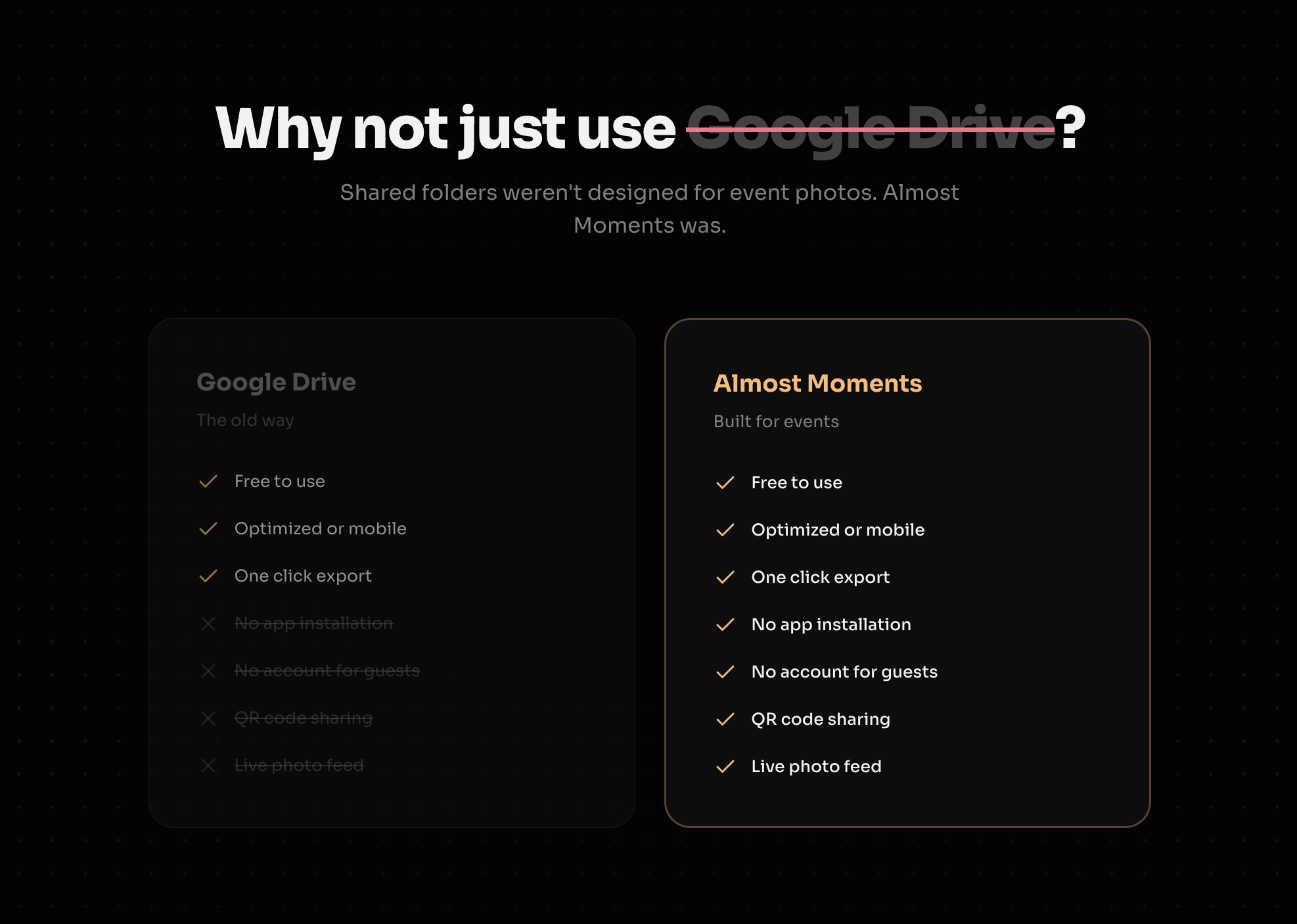
I did not prompt this one, but the artificial intelligence decided to add a direct comparison with Google Drive. It is a great marketing catch, since Google Drive often requires an app, an account, and invitations to get started.
The frequently asked questions section came with a solid set of questions. A few answers needed corrections, but they were easy to fix, and nothing major.
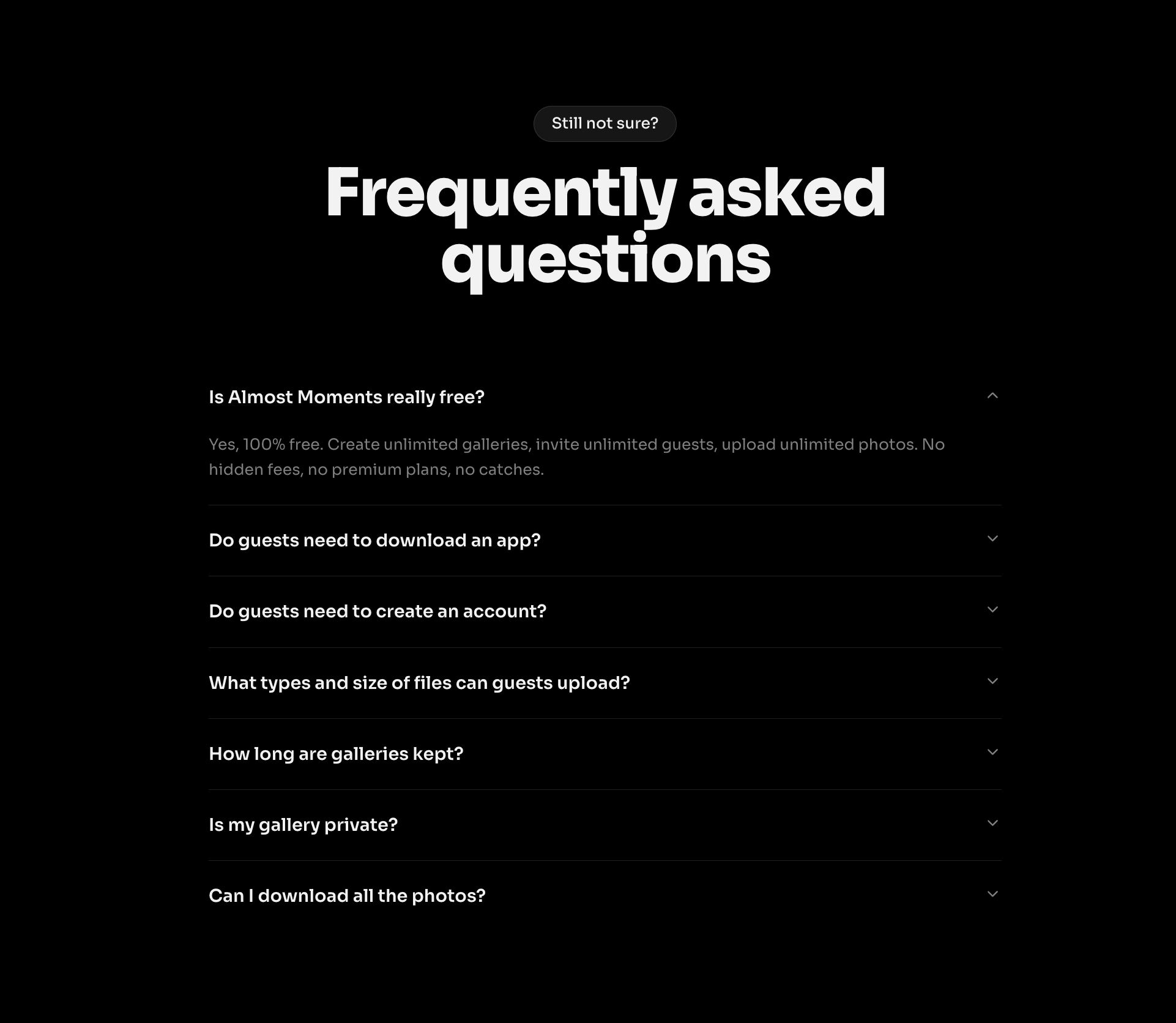
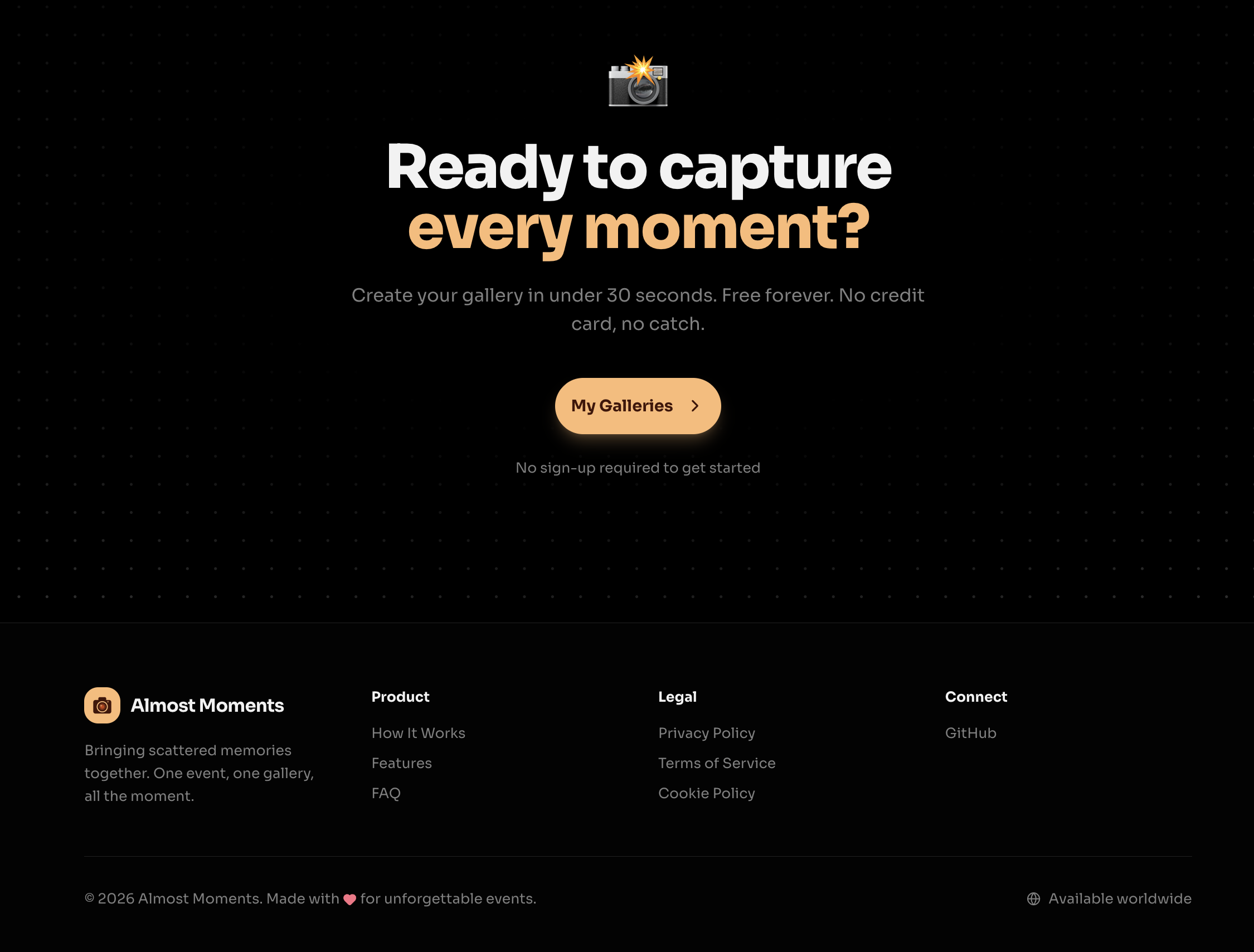
The homepage wraps up with a CTA section and a footer, both looking clean and modern.
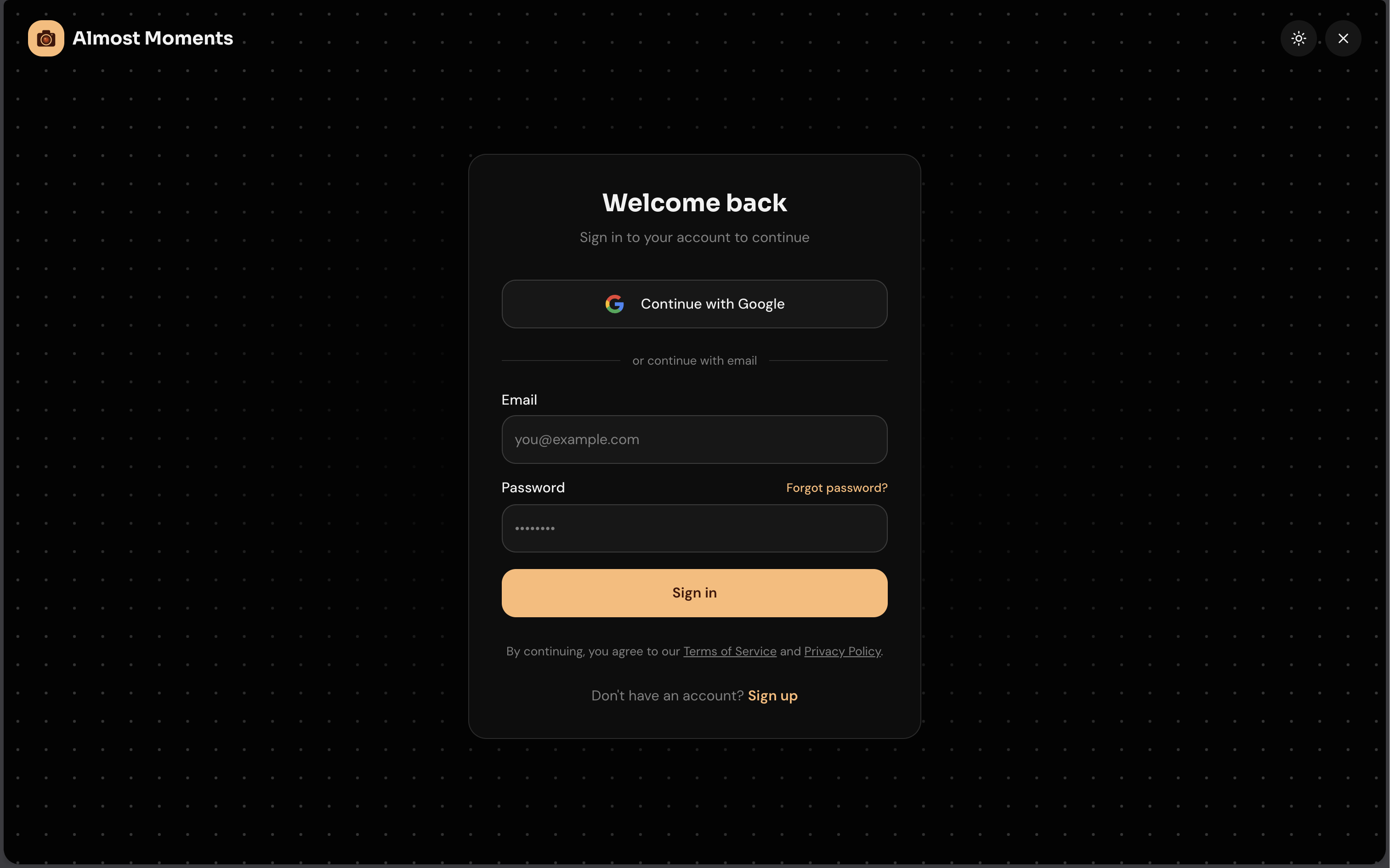
The login screen supports signing up with email and password, or using Google OAuth (sign in with Google) directly. Password reset is handled through a magic URL sent to your email.
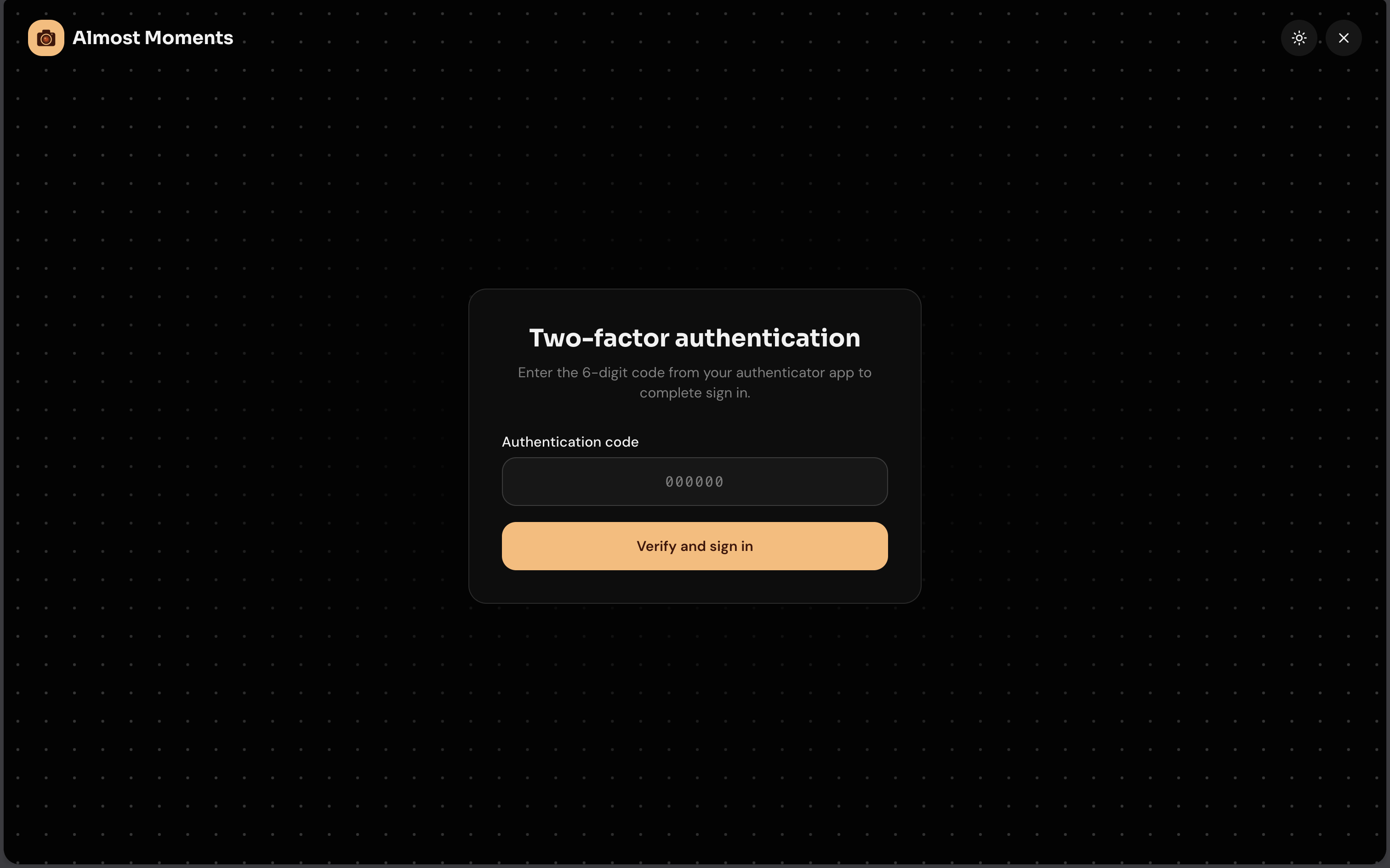
After a successful login, users can enable two-factor authentication. When enabled, a TOTP code is required before the user can access the dashboard.
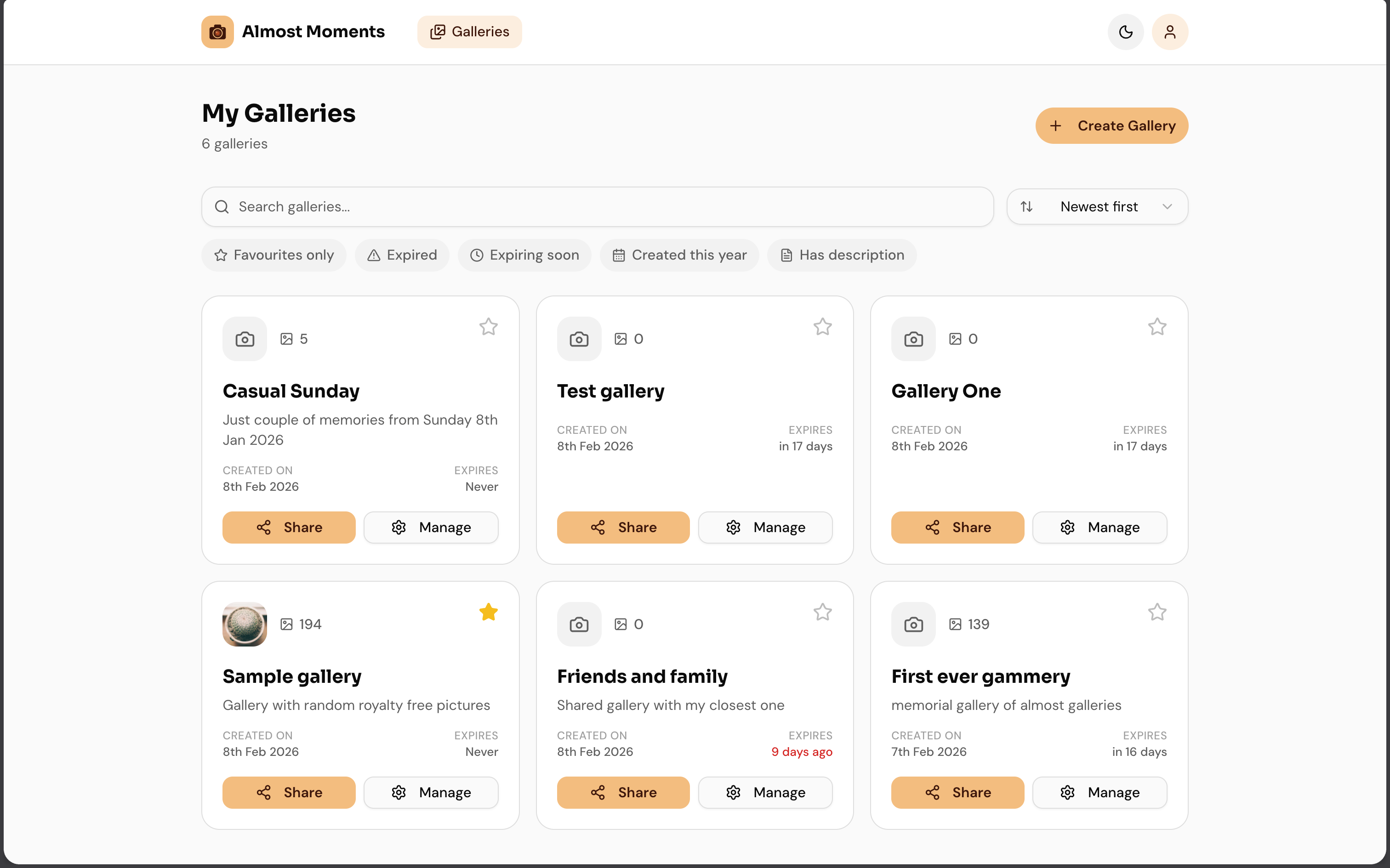
The dashboard is where all gallery management happens. Each gallery card shows the most important details at a glance: total number of pictures, title, short description, creation date, and when the public link expires. Galleries can also be starred as favorites, and filters let you narrow down to favorites only, soon-to-expire galleries, or those created in the current year.
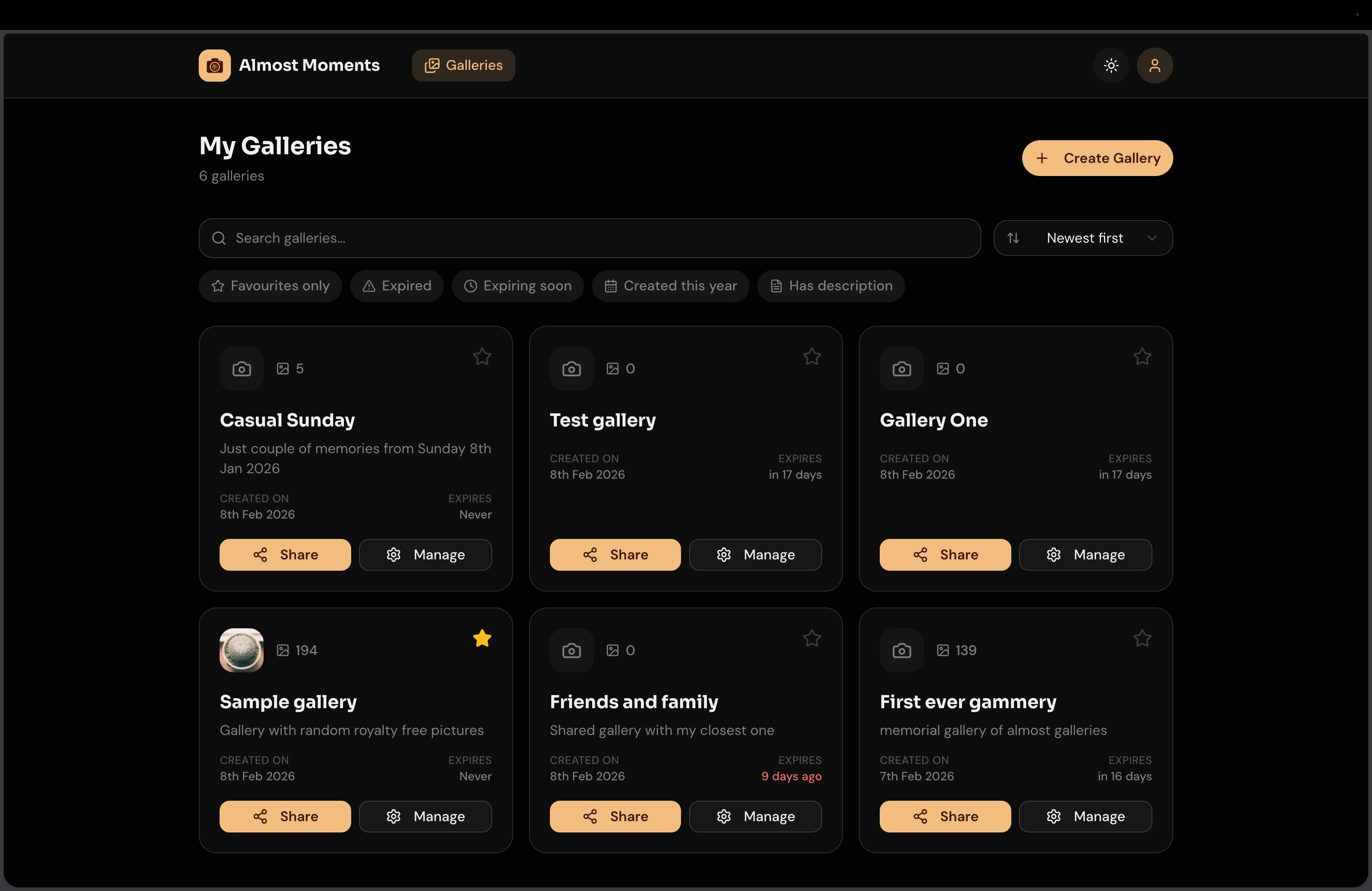
Thanks to shadcn/ui, all components automatically support both light and dark themes. So I added a simple toggle to switch between them, and this now works and applies across every page.
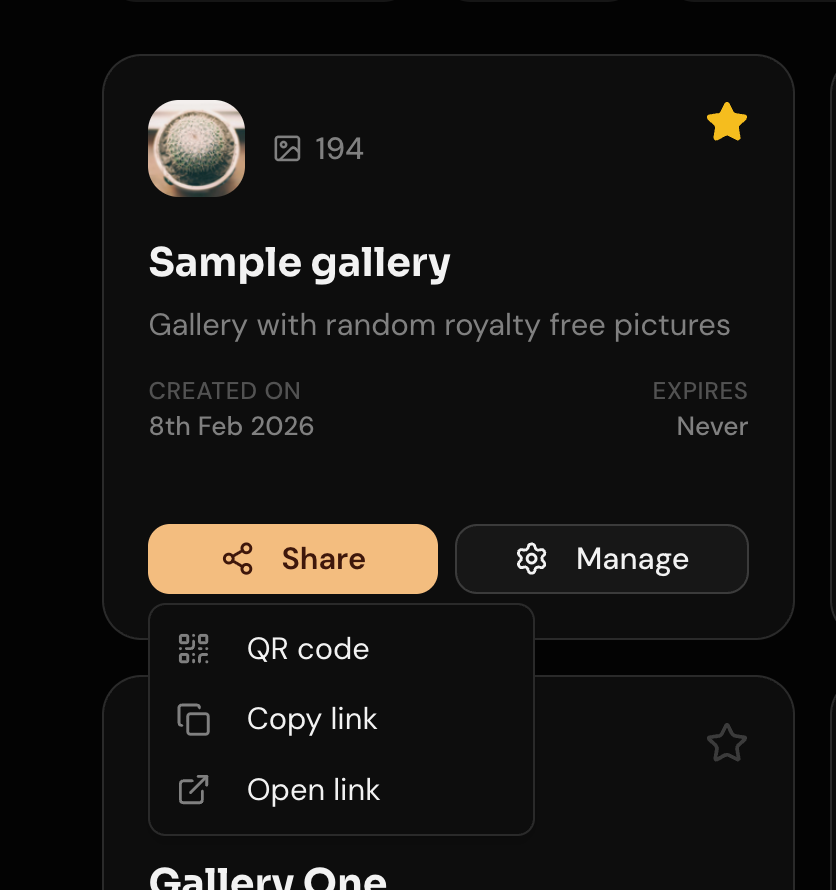
The share button on each gallery card opens a dropdown with multiple sharing options: a QR code, a direct link to open, or a button to copy the link to the clipboard.
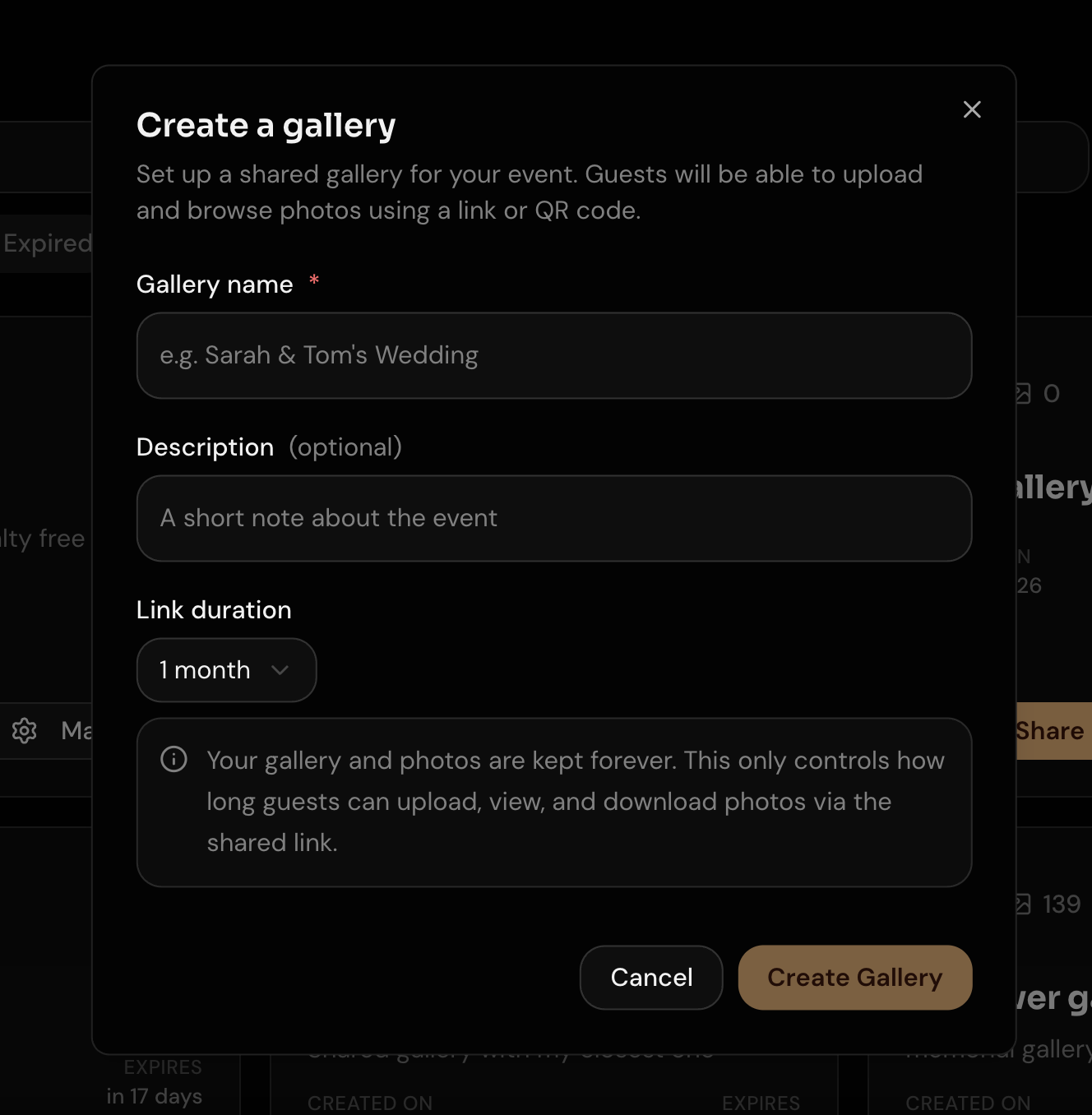
Creating a new gallery is straightforward. The modal lets you set a name, an optional description, and the duration of the public link.
Inside a gallery, the management page shows its settings, such as name, description, and public link duration, all of which can be changed at any time.
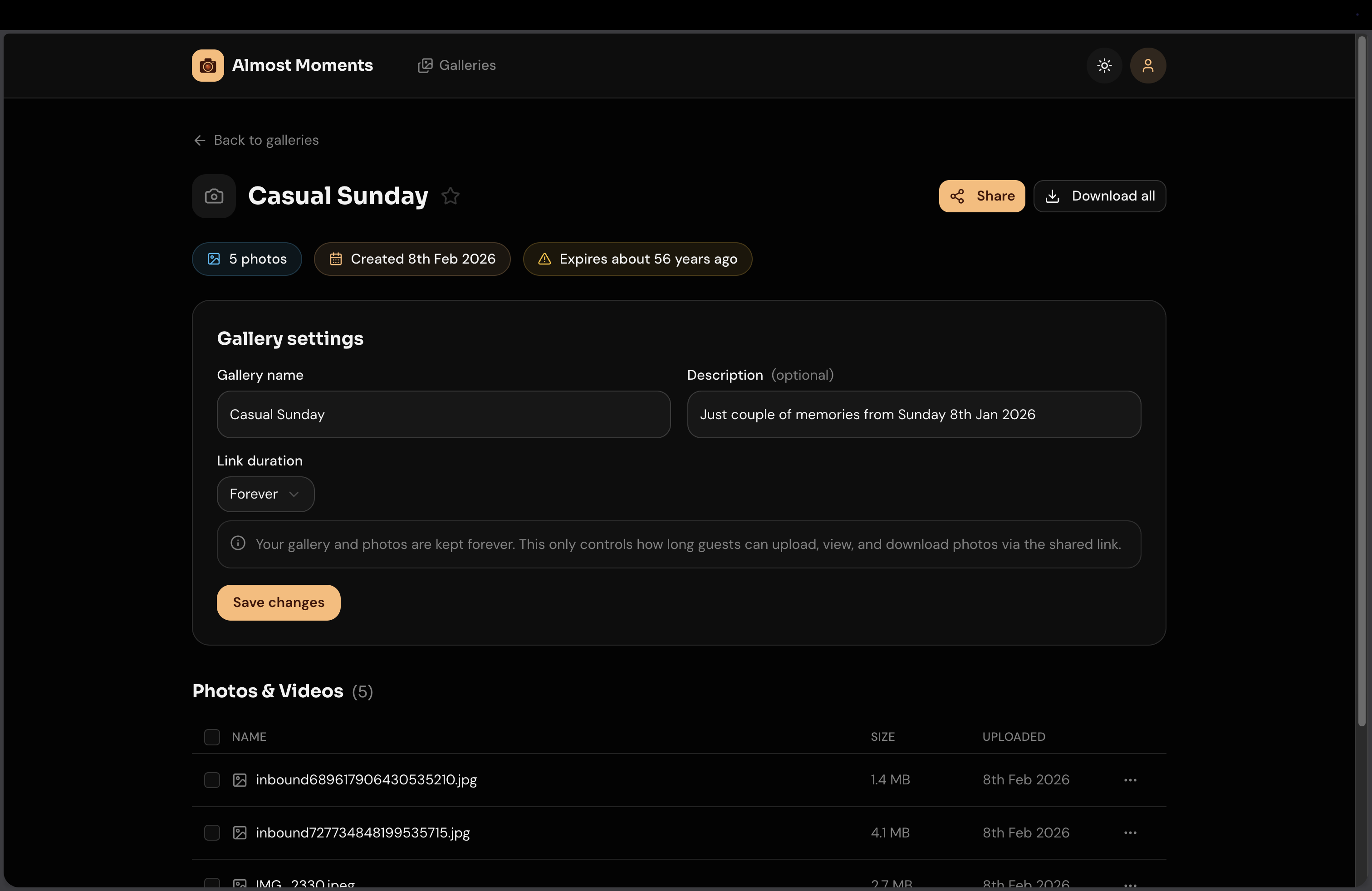
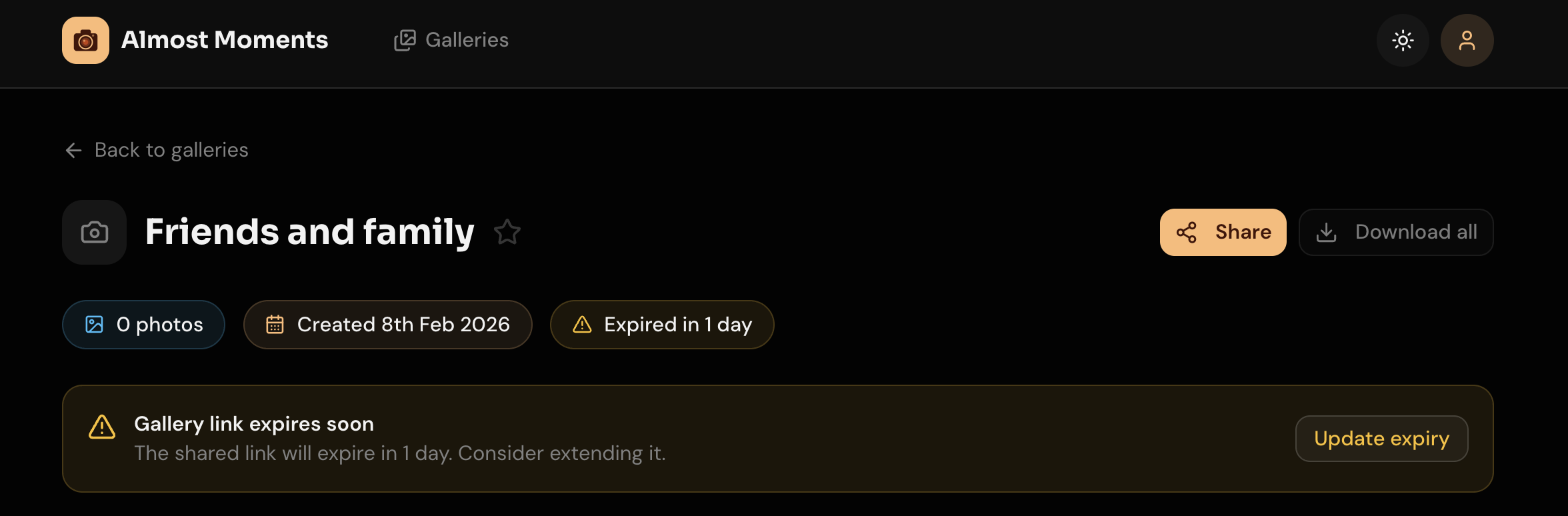
As a user experience improvement, a warning alert appears when the public link of a gallery is about to expire, with a quick action to set a new expiry date.
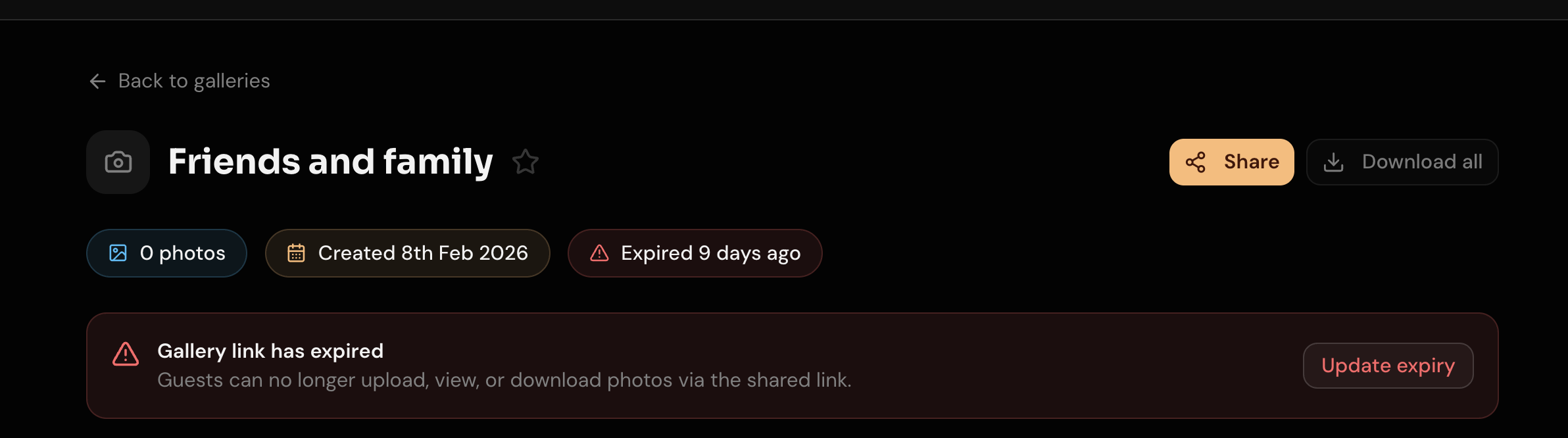
Similarly, if the public link has already expired, an error alert takes its place, again with a shortcut to renew it.
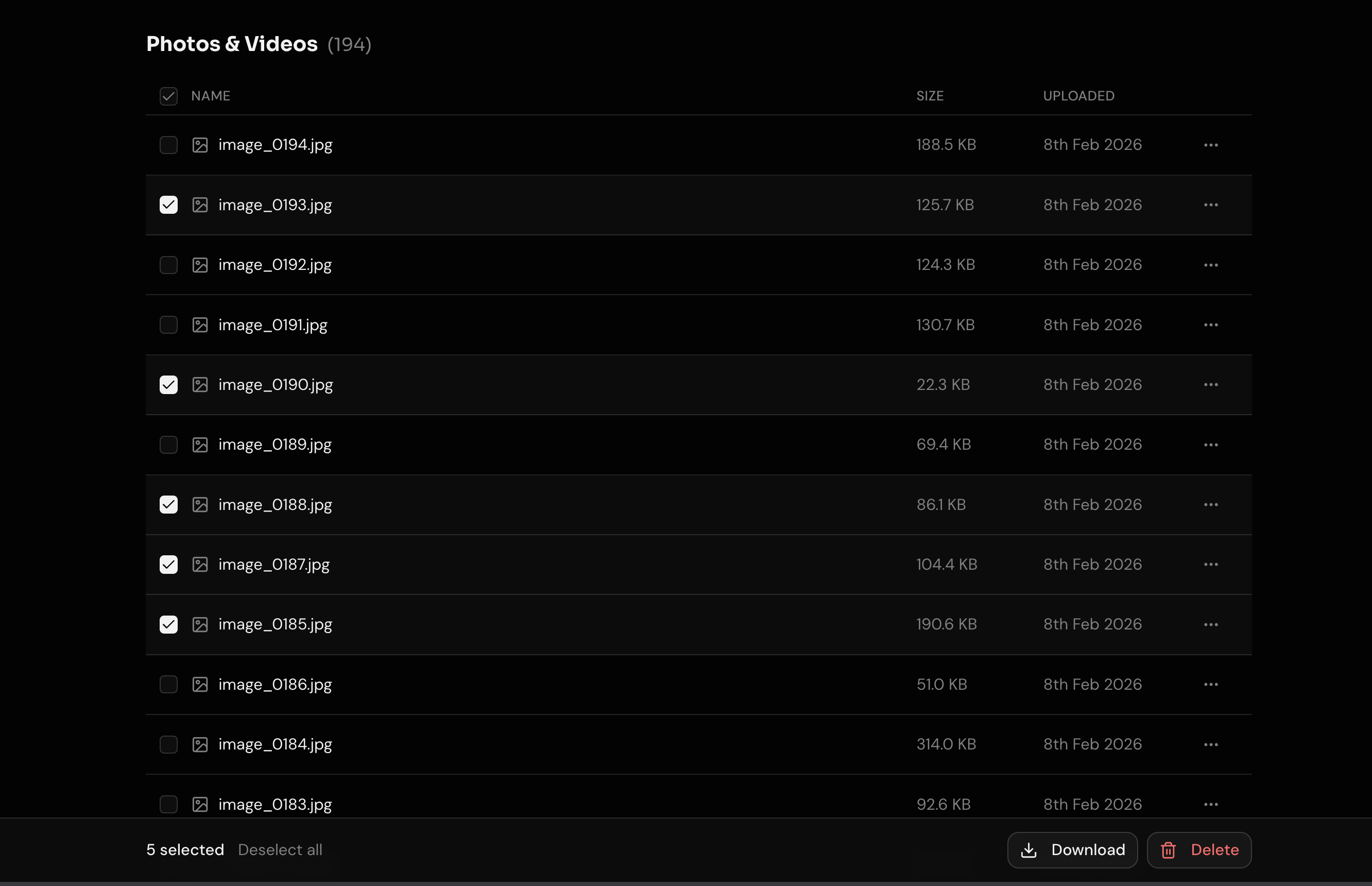
All files are listed with cursor-based pagination, showing the file name, size, and creation date. The creation date was a tricky decision. Should it be the date of upload, or the date the picture was actually taken? I went with the date the picture was taken, so when exporting files from multiple participants, everything stays in chronological order.
Files can be selected individually, in bulk, or all at once with a single click. A bottom action bar slides in with options to delete the selected files or export them as a ZIP archive.
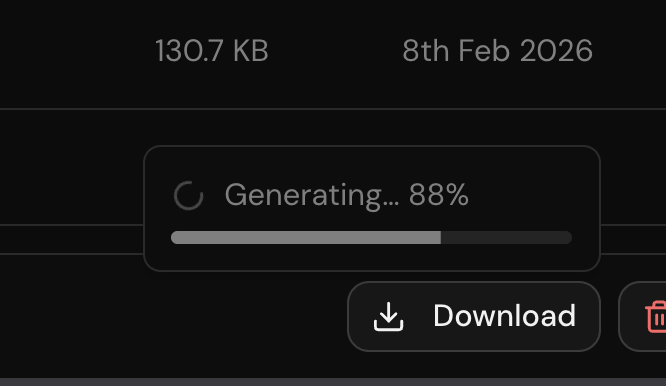
The export button opens a small popover showing download progress, which is especially useful when exporting large galleries with thousands of files.
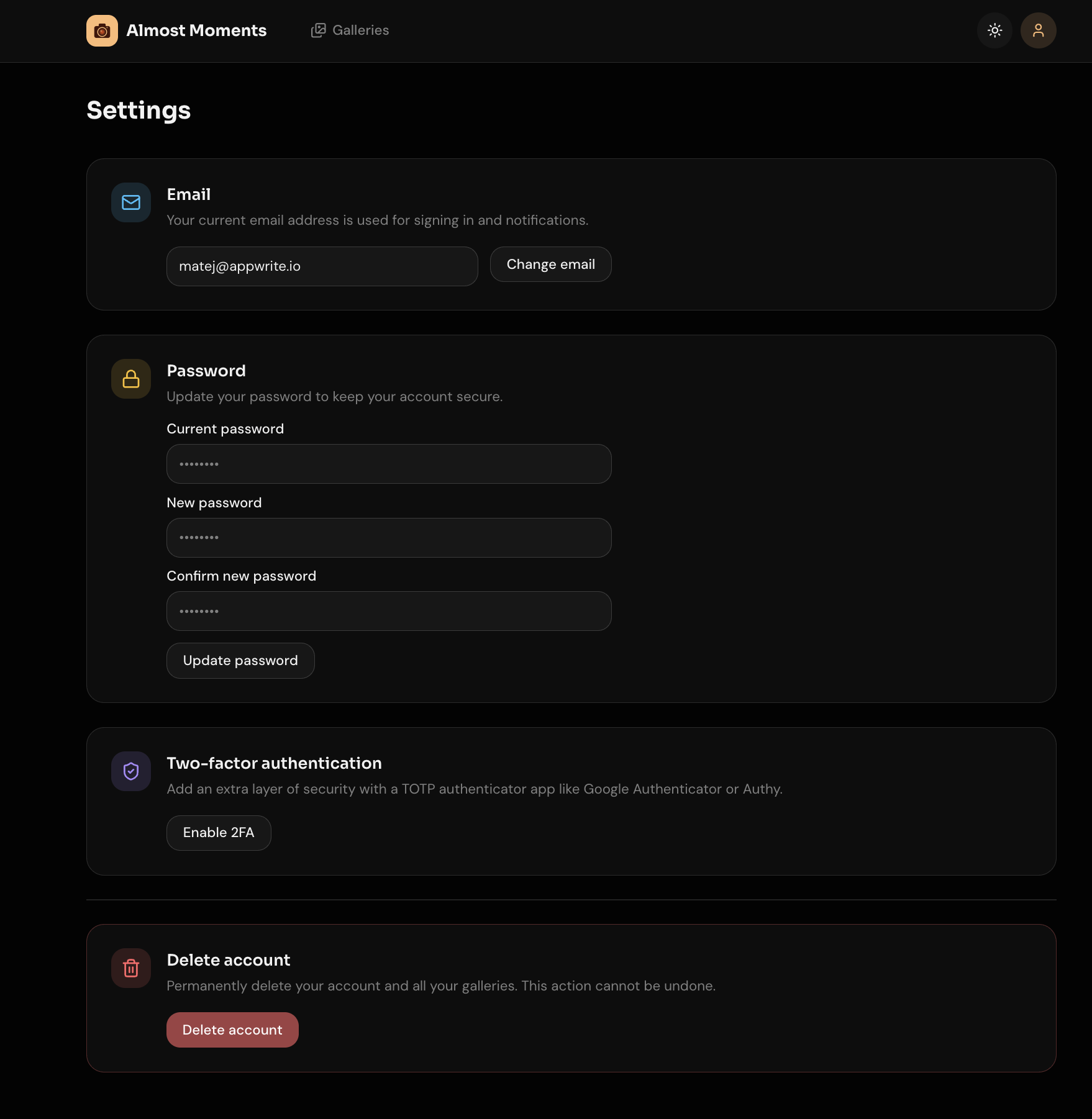
The settings page provides cards for changing your email or password, deleting your account, or enabling two-factor authentication.
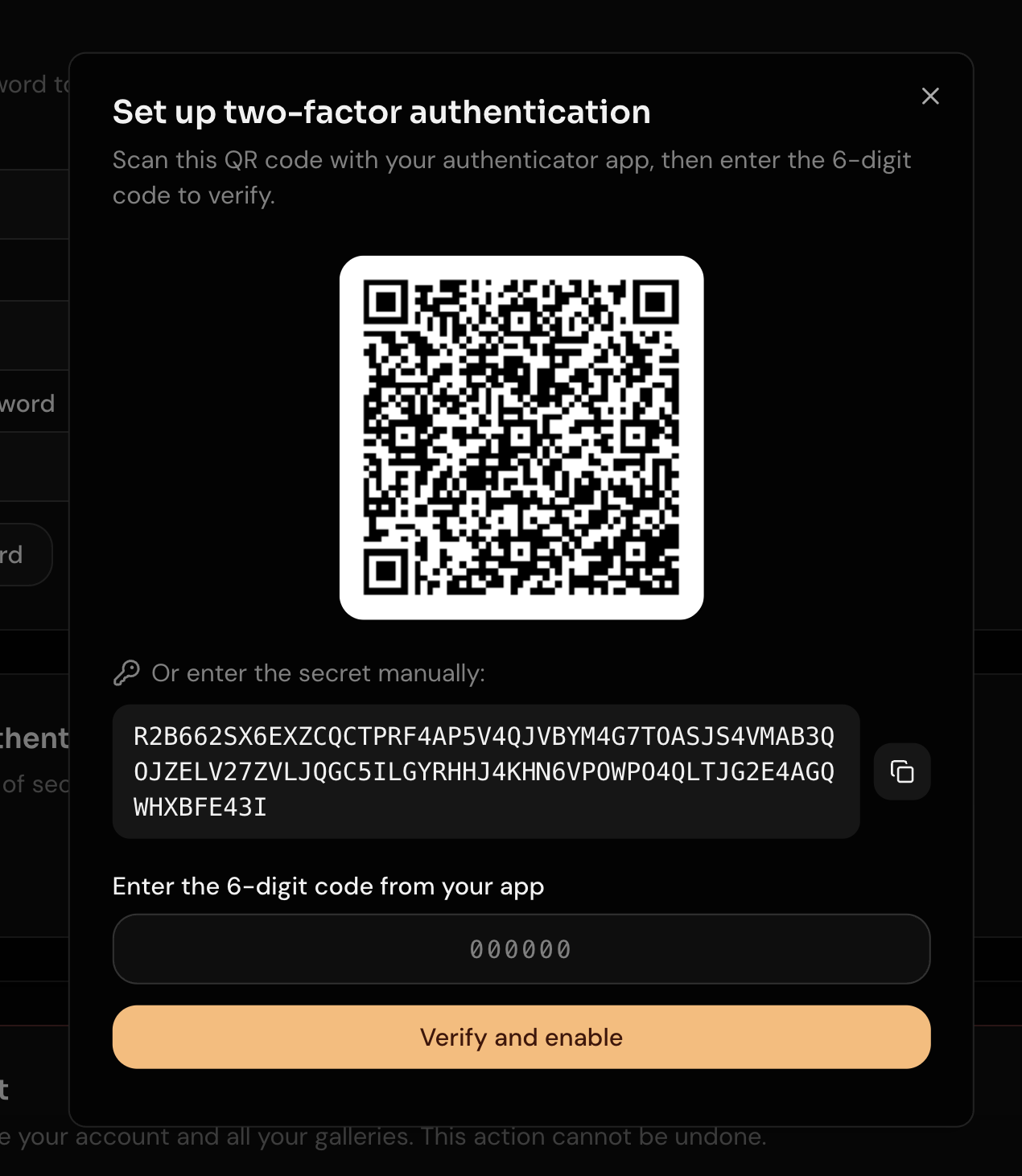
The two-factor authentication setup modal displays a QR code for scanning, or allows copying the secret manually.
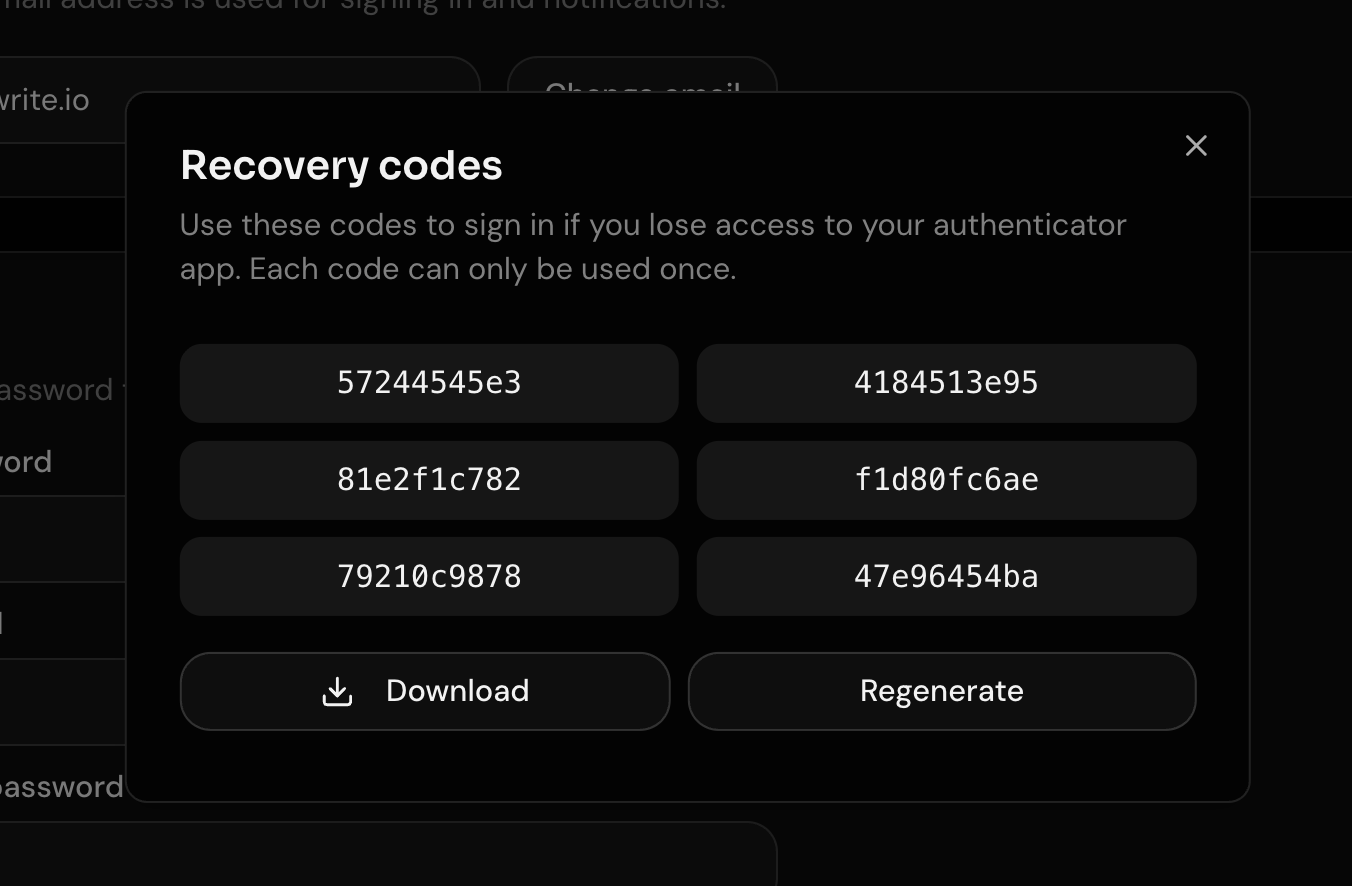
After connecting TOTP, recovery codes are shown. These can be used if the device with the second factor is lost. Recovery codes can also be regenerated, and two-factor authentication can be disabled entirely. Both actions require a recently refreshed session, specifically a TOTP challenge completed within the last 15 minutes. The frontend checks this automatically and prompts the user to verify before proceeding.
Future plans
Video and audio files can already be uploaded, but the public gallery currently only shows an icon for them. Adding inline playback for videos and an audio player would make the experience much more complete.
A read-only mode would let participants download files while keeping uploads restricted to the organizer. Similarly, an upload-only mode would allow participants to contribute photos without being able to browse the full gallery.
A slideshow view for the organizer would be a great addition. Displayed on a screen or monitor at the event location, it would encourage participants to upload their pictures knowing they get shown on the slideshow.
Real-time updates to the gallery would make the experience feel alive. When multiple people have the gallery open at the same time, they could watch new uploads appear one by one as others add their photos.
And finally, a feature I only realized was missing after I started using the app myself. The ability to delete a gallery. So basic, yet not there yet.